Download VMware Cloud Foundation 5.2 Administrator.2V0-11.25.Actual4Test.2025-10-28.56q.vcex
| Vendor: | VMware |
| Exam Code: | 2V0-11.25 |
| Exam Name: | VMware Cloud Foundation 5.2 Administrator |
| Date: | Oct 28, 2025 |
| File Size: | 353 KB |
| Downloads: | 2 |
How to open VCEX files?
Files with VCEX extension can be opened by ProfExam Simulator.
Discount: 20%

Demo Questions
Question 1
An administrator is enabling VMware's Virtual Machine Encryption for an existing VMware Cloud Foundation (VCF) Workload Domain in order to meet their organization's compliance regulations.Which three steps should the administrator take to complete this task? (Choose three.)
- Configure a Key Management Server (KMS) and add it to the vCenter.
- Enable SSH on the ESXi hosts to manage encryption keys.
- Create an encryption policy in vCenter.
- Apply the encryption policy to the ESXi hosts.
- Apply the encryption policy to the existing VMs.
- Enable the encryption feature on the ESXi hosts.
Correct answer: A,C,E
Explanation:
You must configure and register a Key Management Server in vCenter to handle encryption keys.An encryption policy is created in vCenter to define the encryption settings that VMs will use.You then apply the encryption policy to the existing VMs to encrypt their disks.https://techdocs.broadcom.com/us/en/vmware-cis/vsphere/vsphere/8-0/vsphere-security-8-0/use-encryption-in- your-vsphere-environment/encrypt-an-existing-virtual-machine-or-virtual-disk.html You must configure and register a Key Management Server in vCenter to handle encryption keys.An encryption policy is created in vCenter to define the encryption settings that VMs will use.You then apply the encryption policy to the existing VMs to encrypt their disks.https://techdocs.broadcom.com/us/en/vmware-cis/vsphere/vsphere/8-0/vsphere-security-8-0/use-encryption-in- your-vsphere-environment/encrypt-an-existing-virtual-machine-or-virtual-disk.html
Question 2
The administrator has been tasked with applying asynchronous software updates to the VMware Cloud Foundation (VCF) instance using the VMware Async Patch CLI Tool.Which four steps would an administrator take to complete the task? (Choose four.)
- Download the bundles from SDDC Manager.
- Download the bundles.
- Upload the confirmation to SDDC Manager.
- Apply the patches directly through the Async Patch CLI Tool.
- Enable the bundles.
- Apply the patches through the SDDC Manager UI.
- Upload the bundles to SDDC Manager.
Correct answer: B,E,F,G
Explanation:
To apply asynchronous software updates to a VMware Cloud Foundation (VCF) instance using the VMware Async Patch CLI Tool, an administrator must follow a specific sequence of steps. The VMware Async Patch CLI Tool is designed to facilitate the application of critical patches to VCF components-such as NSX Manager, vCenter Server, or ESXi-outside the standard release cycle. These patches are then integrated into the SDDC Manager for application. Based on the provided options and standard practices, the four correct steps are outlined below.Step 1: Download the BundlesThe process begins with obtaining the necessary patch bundles. These bundles contain the asynchronous updates that need to be applied to the VCF instance. In an offline environment, the administrator downloads the bundles on a separate computer with internet access using the Async Patch CLI Tool (e.g., with a command like --download). In an online environment, the tool can download the bundles directly to the SDDC Manager. The optionB. Download the bundlesaccurately reflects this initial step, as it is a prerequisite regardless of the environment.Step 2: Upload the Bundles to SDDC ManagerOnce downloaded, the bundles must be made available to the SDDC Manager. In an offline scenario, this involves manually transferring (or uploading) the downloaded bundles from the separate computer to the SDDC Manager appliance. In an online scenario, the Async Patch CLI Tool can automate this upload to the SDDC Manager's internal Lifecycle Management (LCM) repository when enabling the patch. The optionG.Upload the bundles to SDDC Managerrepresents this critical step, ensuring the bundles are accessible to the system.Step 3: Enable the BundlesWith the bundles uploaded to the SDDC Manager, the administrator uses the Async Patch CLI Tool to enable the patches. This step involves running a command such as --enableAsyncPatch, which registers the patch bundles with the SDDC Manager and prepares them for application. In an online environment, this command may also handle the download and upload automatically, but since the options separate these actions, "enable" refers specifically to making the patches available within the SDDC Manager. The optionE. Enable the bundlescorresponds to this process, aligning with the tool's role in enabling patches for subsequent application.Step 4: Apply the Patches through the SDDC Manager UIFinally, the administrator applies the enabled patches to the VCF instance using the SDDC Manager user interface (UI). The Async Patch CLI Tool does not apply the patches directly; instead, it prepares them, and the actual application occurs through the SDDC Manager UI as part of the lifecycle management process.This step ensures the patches are deployed to the target components in a controlled manner. The optionF.Apply the patches through the SDDC Manager UIaccurately describes this final action.Why Not the Other Options?A). Download the bundles from SDDC Manager: This is incorrect because bundles are typically downloaded from an external source (e.g., VMware's repository) to the SDDC Manager, not the other way around.C). Upload the confirmation to SDDC Manager: There is no standard process involving "uploading a confirmation" in the async patching workflow, making this option irrelevant.D). Apply the patches directly through the Async Patch CLI Tool: This is incorrect, as the tool only enables patches; the application is performed via the SDDC Manager UI.ConclusionThe four steps an administrator would take to apply asynchronous software updates using the VMware Async Patch CLI Tool are:B). Download the bundlesG). Upload the bundles to SDDC ManagerE). Enable the bundlesF). Apply the patches through the SDDC Manager UIThese steps provide a complete and logical sequence for successfully patching a VCF instance with the Async Patch CLI Tool. To apply asynchronous software updates to a VMware Cloud Foundation (VCF) instance using the VMware Async Patch CLI Tool, an administrator must follow a specific sequence of steps. The VMware Async Patch CLI Tool is designed to facilitate the application of critical patches to VCF components-such as NSX Manager, vCenter Server, or ESXi-outside the standard release cycle. These patches are then integrated into the SDDC Manager for application. Based on the provided options and standard practices, the four correct steps are outlined below.Step 1: Download the BundlesThe process begins with obtaining the necessary patch bundles. These bundles contain the asynchronous updates that need to be applied to the VCF instance. In an offline environment, the administrator downloads the bundles on a separate computer with internet access using the Async Patch CLI Tool (e.g., with a command like --download). In an online environment, the tool can download the bundles directly to the SDDC Manager. The optionB. Download the bundlesaccurately reflects this initial step, as it is a prerequisite regardless of the environment.Step 2: Upload the Bundles to SDDC ManagerOnce downloaded, the bundles must be made available to the SDDC Manager. In an offline scenario, this involves manually transferring (or uploading) the downloaded bundles from the separate computer to the SDDC Manager appliance. In an online scenario, the Async Patch CLI Tool can automate this upload to the SDDC Manager's internal Lifecycle Management (LCM) repository when enabling the patch. The optionG.Upload the bundles to SDDC Managerrepresents this critical step, ensuring the bundles are accessible to the system.Step 3: Enable the BundlesWith the bundles uploaded to the SDDC Manager, the administrator uses the Async Patch CLI Tool to enable the patches. This step involves running a command such as --enableAsyncPatch, which registers the patch bundles with the SDDC Manager and prepares them for application. In an online environment, this command may also handle the download and upload automatically, but since the options separate these actions, "enable" refers specifically to making the patches available within the SDDC Manager. The optionE. Enable the bundlescorresponds to this process, aligning with the tool's role in enabling patches for subsequent application.Step 4: Apply the Patches through the SDDC Manager UIFinally, the administrator applies the enabled patches to the VCF instance using the SDDC Manager user interface (UI). The Async Patch CLI Tool does not apply the patches directly; instead, it prepares them, and the actual application occurs through the SDDC Manager UI as part of the lifecycle management process.This step ensures the patches are deployed to the target components in a controlled manner. The optionF.Apply the patches through the SDDC Manager UIaccurately describes this final action.Why Not the Other Options?A). Download the bundles from SDDC Manager: This is incorrect because bundles are typically downloaded from an external source (e.g., VMware's repository) to the SDDC Manager, not the other way around.C). Upload the confirmation to SDDC Manager: There is no standard process involving "uploading a confirmation" in the async patching workflow, making this option irrelevant.D). Apply the patches directly through the Async Patch CLI Tool: This is incorrect, as the tool only enables patches; the application is performed via the SDDC Manager UI.ConclusionThe four steps an administrator would take to apply asynchronous software updates using the VMware Async Patch CLI Tool are:B). Download the bundlesG). Upload the bundles to SDDC ManagerE). Enable the bundlesF). Apply the patches through the SDDC Manager UIThese steps provide a complete and logical sequence for successfully patching a VCF instance with the Async Patch CLI Tool.
Question 3
An administrator's passwords for their NSX 'root', 'admin', and 'audit' accounts in the Cloud Foundation management domain expired. The administrator logged into the NSX Manager console and changed the passwords for all three accounts. The passwords are now showing a status of "Disconnected" in the SDDC Manager UI.
- In order to correct this issue, how can SDDC Manager be updated with the new passwords?
- In SDDC Manager, navigate to Password Management and select the account with the password with a "Disconnected" status, click the vertical ellipsis (three dots), and click Rotate.
- In SDDC Manager, navigate to Password Management and select the account with the password with a "Disconnected" status, click the vertical ellipsis (three dots), and click Sync.
- In SDDC Manager, navigate to Password Management and select the account with the password with a "Disconnected" status, click the vertical ellipsis (three dots), and click Remediate.
Correct answer: B
Explanation:
To resolve the issue of disconnected accounts in SDDC Manager after password changes, the administrator must navigate to the Password Management section in the SDDC Manager UI. From there, the administrator can select the affected account, click the vertical ellipsis (three dots), and choose Update to enter the new password for that account, ensuring SDDC Manager is synced with the correct credentials. To resolve the issue of disconnected accounts in SDDC Manager after password changes, the administrator must navigate to the Password Management section in the SDDC Manager UI. From there, the administrator can select the affected account, click the vertical ellipsis (three dots), and choose Update to enter the new password for that account, ensuring SDDC Manager is synced with the correct credentials.
Question 4
An administrator configures a Local Content Library on vCenter Server A, enables publishing, and creates Subscribed Content Libraries on vCenter Server B and vCenter Server C using the publishing URL. However, the contents of the subscribed libraries on vCenter B and C are not synchronizing with the source library on vCenter A.Which step should the administrator take to troubleshoot the issue?
- Recreate the Subscribed Content Libraries on vCenter B and C with a new publishing URL from vCenter Server A to reset the synchronization configuration.
- Verify that network connectivity exists between vCenter Server A and the other two vCenters, and ensure that the required ports for Content Library synchronization are open.
- Enable bidirectional synchronization on the Content Library settings to ensure updates are propagated back and forth between vCenter Server A and the subscribed libraries.
- Manually export the library content from vCenter Server A and import it into the subscribed libraries on vCenter B and C to initialize synchronization.
Correct answer: B
Explanation:
Comprehensive and Detailed Explanation From Exact Extract:When subscribed Content Libraries are not synchronizing with the source Local Content Library, the primary troubleshooting step, as described in the official VMware documentation, is to verify network connectivity between the source vCenter (vCenter Server A) and the subscribing vCenters (vCenter Server B and C). The administrator must ensure that all required network ports for Content Library synchronization are open and accessible. Without proper network communication, the subscribing vCenters cannot retrieve or sync content from the published library.Other steps, such as recreating the libraries, enabling bidirectional sync, or manually importing content, do not address the core issue of connectivity and port access, which is essential for automated synchronization to function correctly. Comprehensive and Detailed Explanation From Exact Extract:When subscribed Content Libraries are not synchronizing with the source Local Content Library, the primary troubleshooting step, as described in the official VMware documentation, is to verify network connectivity between the source vCenter (vCenter Server A) and the subscribing vCenters (vCenter Server B and C). The administrator must ensure that all required network ports for Content Library synchronization are open and accessible. Without proper network communication, the subscribing vCenters cannot retrieve or sync content from the published library.Other steps, such as recreating the libraries, enabling bidirectional sync, or manually importing content, do not address the core issue of connectivity and port access, which is essential for automated synchronization to function correctly.
Question 5
After deploying the VMware Cloud Foundation management domain, an administrator needs to configure backup for the components within the domain.Which two steps are involved in configuring the backup of VMware Cloud Foundation management components? (Choose two.)
- Create a backup schedule on the SDDC manager to automate taking regular backups.
- Configure an external SFTP backup repository on the SDDC Manager.
- Enable the vCenter Server snapshot manager on the SDDC Manager.
- Install a third-party backup solution on each ESXi host.
- Manually export the NSX configuration to the SDDC Manager.
Correct answer: A,B
Question 6
During the deployment of a VI workload domain using SDDC Manager, an administrator encounters issues with host configuration.Which three steps should be followed to troubleshoot and resolve the configuration issues? (Choose three.)
- Restart the SDDC Manager appliance to reset configurations.
- Reconfigure the NSX Edge nodes.
- Check the compatibility of the hardware with VMware Cloud Foundation requirements.
- Ensure that all ESXi hosts have the correct version of ESXi installed.
- Verify that all ESXi hosts are connected to the management network.
Correct answer: C,D,E
Explanation:
Verifying hardware compatibility with VMware Cloud Foundation requirements is essential. If the hardware is not compatible, configuration issues can arise during deployment.Ensuring that the ESXi hosts have the correct version installed is crucial because mismatched versions can lead to configuration failures.Verifying that all ESXi hosts are connected to the management network is important because connectivity issues between hosts and management components can prevent proper configuration during deployment. Verifying hardware compatibility with VMware Cloud Foundation requirements is essential. If the hardware is not compatible, configuration issues can arise during deployment.Ensuring that the ESXi hosts have the correct version installed is crucial because mismatched versions can lead to configuration failures.Verifying that all ESXi hosts are connected to the management network is important because connectivity issues between hosts and management components can prevent proper configuration during deployment.
Question 7
When configuring a new port group on a Virtual Distributed Switch (VDS), what is the purpose of setting a VLAN ID?
- To manage storage replication settings
- To segment and isolate network traffic.
- To automate the creation of VMs within the port group.
- To enable load balancing across multiple uplinks.
Correct answer: B
Explanation:
Setting a VLAN ID on a port group on a Virtual Distributed Switch (VDS) allows for network segmentation by tagging traffic with the appropriate VLAN ID. This enables isolation of network traffic between different VLANs, ensuring that communication is restricted to specific segments of the network as required. Setting a VLAN ID on a port group on a Virtual Distributed Switch (VDS) allows for network segmentation by tagging traffic with the appropriate VLAN ID. This enables isolation of network traffic between different VLANs, ensuring that communication is restricted to specific segments of the network as required.
Question 8
While deploying a new VMware Cloud Foundation environment, a cloud administrator validates the information entered into the Deployment Parameter Workbook. The validation action results in an error and the VMware Cloud Builder GUI error message does not identify the cause.Which logfile can the administrator use to identify the cause of the validation error?
- VMware SDDC Manager appliance - vcf-deployment-debug.log
- VMware Cloud Builder appliance - vcf-bringup-debug.log
- VMware SDDC Manager appliance - vcf-bringup-debug.log
- VMware Cloud Builder appliance - vcf-deployment-debug.log
Correct answer: D
Explanation:
The vcf-deployment-debug.log file on the VMware Cloud Builder appliance contains detailed logs related to the deployment process, including any validation errors. This log will help identify the cause of the error during the deployment validation phase. The vcf-deployment-debug.log file on the VMware Cloud Builder appliance contains detailed logs related to the deployment process, including any validation errors. This log will help identify the cause of the error during the deployment validation phase.
Question 9
An administrator needs to configure and manage storage resources and policies to optimize performance of a VCF environment configured with vSAN.What two steps should the administrator take? (Choose two.)
- Enable vSphere HA to ensure high availability and resource distribution.
- Monitor the vSAN performance service for insights into the performance issues.
- Analyze the current vSAN storage policies and adjust them as needed.
- Disable vSAN health alerts to reduce administrative overhead.
- Decrease the number of disk groups per host to improve performance.
Correct answer: B,C
Explanation:
The vSAN performance service provides valuable insights into the storage performance, helping identify potential bottlenecks or areas for improvement.Analyzing and adjusting vSAN storage policies is crucial for ensuring optimal performance. Policies such as RAID levels, storage encryption, and other settings can be tweaked to better match the environment's performance requirements. The vSAN performance service provides valuable insights into the storage performance, helping identify potential bottlenecks or areas for improvement.Analyzing and adjusting vSAN storage policies is crucial for ensuring optimal performance. Policies such as RAID levels, storage encryption, and other settings can be tweaked to better match the environment's performance requirements.
Question 10
An administrator needs to ensure that specific virtual machines within a VMware Cloud Foundation environment use storage that can tolerate at least two host failures. As resources are limited, the configuration should use the available resources as efficiently as possible.Which three steps should be performed to configure a storage policy that meets the requirements? (Choose three.)
- Create a new VM Storage Policy in the vSphere Client.
- Set Failures to Tolerate to "2 failures - RAID-1 (Mirroring)" in the policy configuration.
- Reconfigure the existing Default Storage Policy in the vSphere Client.
- Apply the storage policy to the target VMs.
- Set Failures to Tolerate to "2 failures - RAID-6 (Erasure Coding)" in the policy configuration.
- Configure the policy to use thin provisioning.
Correct answer: A,D,E
Explanation:
A new VM storage policy needs to be created in the vSphere Client to define specific requirements for the storage configuration, including tolerance for two host failures.Once the storage policy is created, it must be applied to the specific virtual machines that require the storage configuration that tolerates two host failures.To ensure the storage configuration tolerates two host failures efficiently, RAID-6 (Erasure Coding) is the appropriate choice. RAID-6 can tolerate two host failures while minimizing resource usage compared to other configurations like RAID-1. A new VM storage policy needs to be created in the vSphere Client to define specific requirements for the storage configuration, including tolerance for two host failures.Once the storage policy is created, it must be applied to the specific virtual machines that require the storage configuration that tolerates two host failures.To ensure the storage configuration tolerates two host failures efficiently, RAID-6 (Erasure Coding) is the appropriate choice. RAID-6 can tolerate two host failures while minimizing resource usage compared to other configurations like RAID-1.
Question 11
Which feature of VMware Lifecycle Manager allows an administrator to manage the lifecycle of ESXi hosts by applying a consistent image across the hosts in a cluster? (Choose three.)
- Configure a Key Management Server (KMS) and add it to vCenter
- Create an encryption policy in vCenter.
- Enable SSH on the ESXi hosts to manage encryption keys.
- Enable the encryption feature on the ESXi hosts.
- Apply the encryption policy to the existing VMs.
Correct answer: A,B,E
Explanation:
A Key Management Server (KMS) is required to manage encryption keys in the environment, ensuring that encrypted data is securely managed across ESXi hosts.Creating an encryption policy in vCenter allows administrators to define how encryption is applied to virtual machines and data.Applying the encryption policy to the existing VMs ensures that the encryption settings are enforced on virtual machines that require protection. A Key Management Server (KMS) is required to manage encryption keys in the environment, ensuring that encrypted data is securely managed across ESXi hosts.Creating an encryption policy in vCenter allows administrators to define how encryption is applied to virtual machines and data.Applying the encryption policy to the existing VMs ensures that the encryption settings are enforced on virtual machines that require protection.
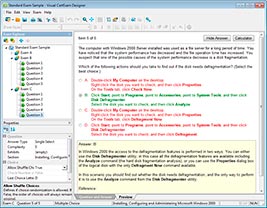
HOW TO OPEN VCE FILES
Use VCE Exam Simulator to open VCE files
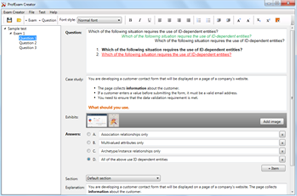
HOW TO OPEN VCEX AND EXAM FILES
Use ProfExam Simulator to open VCEX and EXAM files
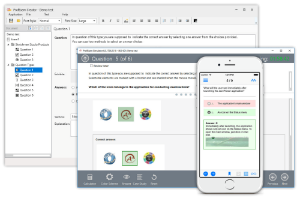
ProfExam at a 20% markdown
You have the opportunity to purchase ProfExam at a 20% reduced price
Get Now!